At a glance
Gemini Tip
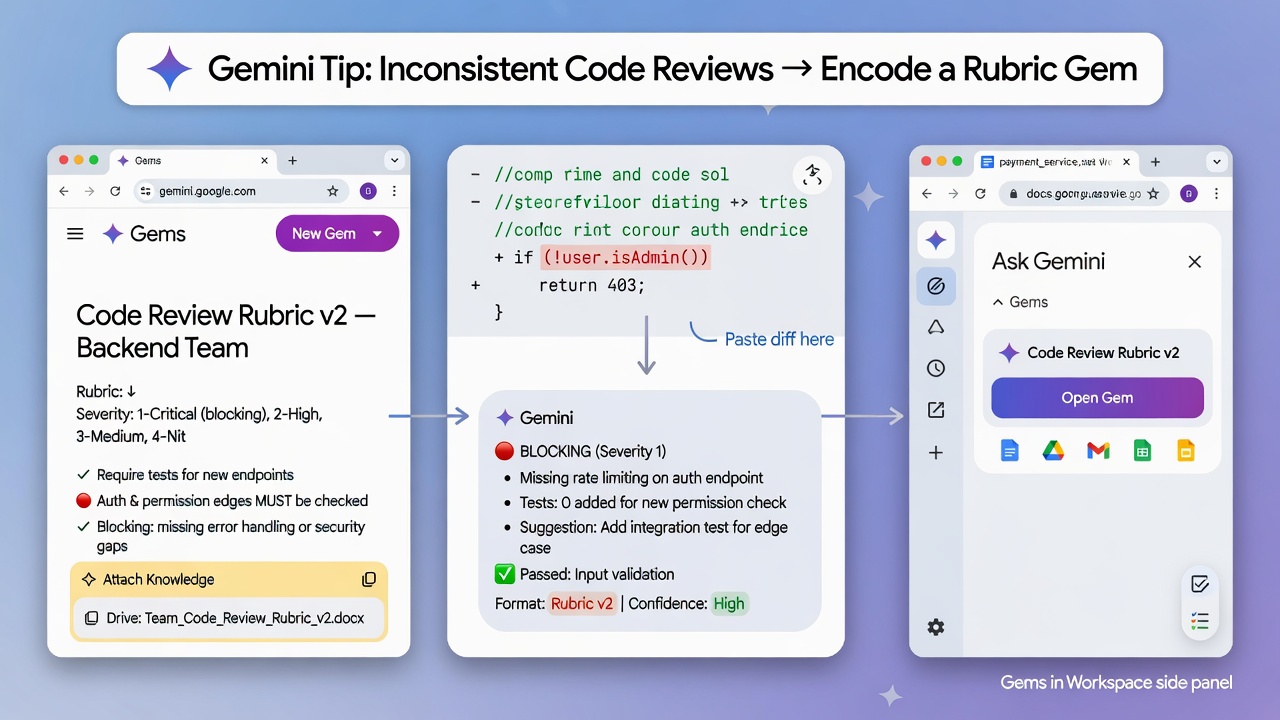
Gemini Tip: Inconsistent Code Reviews → Encode a Rubric Gem
- Turn a one-off review checklist into a reusable Gem you open from gemini.google.com or the Workspace side panel.
- Encode severity, blocking rules, and output format once so every PR gets the same review shape.
- Optionally attach a Drive rubric Doc under Knowledge so the Gem stays tied to your team’s latest standards.
You paste a diff into Gemini, get a vague “looks fine,” then paste the same diff tomorrow and get a different standard. The checklist never follows reviewers across Docs, Drive, and chat. A custom Gem locks persona, task, and format so the same rubric shows up in the Gemini app and in Ask Gemini inside Docs, Drive, Gmail, Sheets, and Slides.
Why it matters
Code review quality collapses when the prompt is reinvented per PR. One reviewer asks for tests; another ignores auth edges; nobody agrees what “blocking” means. Google documents Gems as saved customizations created in the Gemini web app. After Save, they can appear in mobile and in the Workspace side panel. That is the Desktop and Workspace reuse path for a team rubric. The one move: encode severity rules in a Gem, preview on a real PR, Save, then open it from Ask Gemini while you are already in Docs or Drive.
How to create a code-review Rubric Gem
Create and edit custom Gems in the Gemini web app, then reuse them from the Workspace side panel.
1. Go to gemini.google.com and sign in with your work Google account. 2. Open the sidebar → Gems (or Settings and help → Gems if new). Click New Gem. 3. Name it clearly (for example, `PR Rubric Reviewer`). Write instructions with persona, task, context, and format: severity labels, blocking versus non-blocking, and required output sections. 4. Optional: under Knowledge, Add files → Add from Drive and select your team standards Doc (needs Keep Activity on and Google Workspace connected to Gemini Apps). Drive edits stay reflected in the Gem. 5. Preview on the right with a short real PR description or diff. Preview does not save. Click Save when the shape looks right. 6. Reuse under My Gems on gemini.google.com, or in Docs, Drive, Gmail, Sheets, or Slides via Ask Gemini → Gems.
Gotchas
- Create Gems in the Gemini web app. After Save they can show in mobile and the Workspace side panel when Gems and side-panel Gemini are available.
- Preview is not Save. Click Save or the Gem is not stored.
- Drive Knowledge needs Keep Activity on and Workspace connected to Gemini Apps.
- Gems are not available with Gemini Live (Gemini Apps Help). Use text chat or the side panel.
- Workspace edition and admin settings control Ask Gemini and Gems. Prefer Docs, Drive, Gmail, Sheets, and Slides.
- Still verify security claims against the real diff before you approve.
Recommended AI prompt
Copy this paragraph into ChatGPT, Claude, Gemini, Grok, or whatever you use.
You are helping me turn our team code-review checklist into a Gemini Gem. We create it at gemini.google.com (New Gem), optionally attach a Drive standards Doc under Knowledge, Save after preview, then reuse it from Ask Gemini → Gems in Docs or Drive. Ask me for blocking severity rules, required test categories, languages in scope, and whether Drive Knowledge is allowed. Then draft Gem instructions using persona, task, context, and format, plus a short verify checklist: create, preview on a real PR, Save, open from the Workspace side panel, confirm output sections match. Keep it Desktop and Workspace only (no API or curl).
Sources
Recommended AI prompt
Explore each Top Story in Grok. Links open in a new tab. On phones, the same link may open the Grok app if you have it installed (via your device's normal link handling).
Article: Gemini Gems encode reusable code-review rubrics across Google Workspace apps
Privacy: links open grok.com in your session only. AIDevPulse does not run your prompts through our API.
1 thought on “Gemini Gems encode reusable code-review rubrics across Google Workspace apps”