
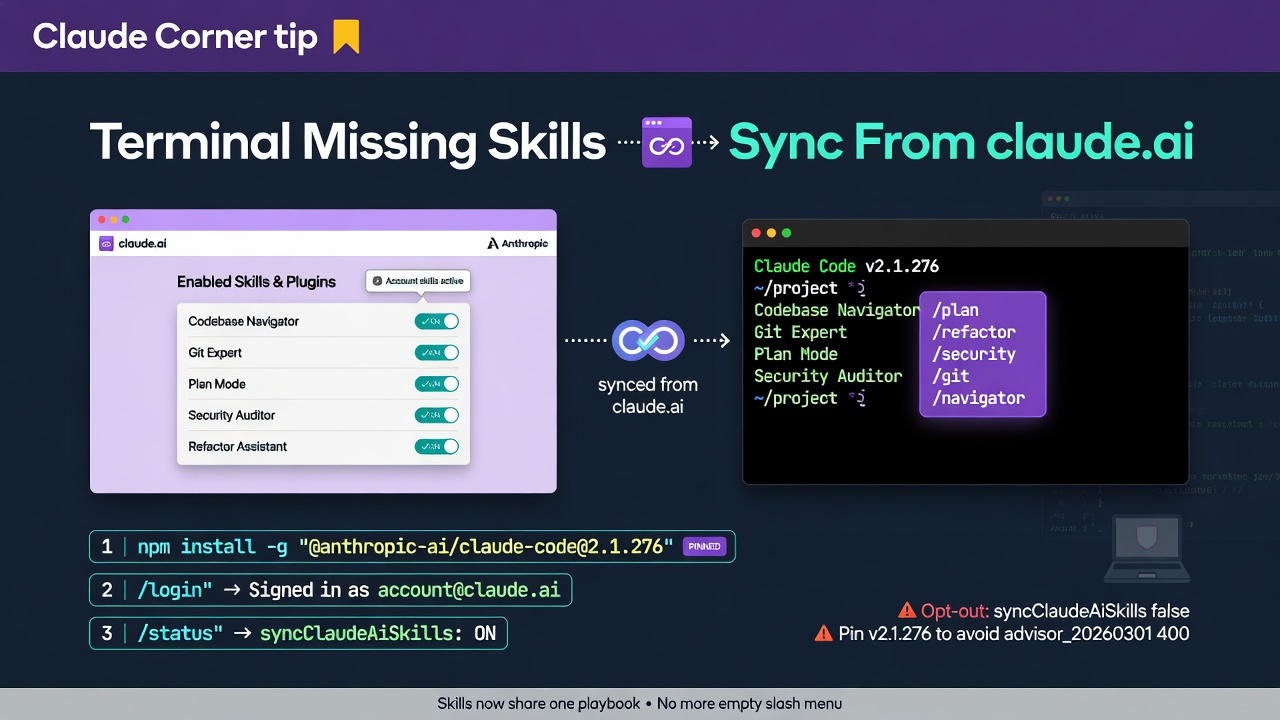
- Keep the skills and plugins you enable on claude.ai available in Claude Code terminal sessions signed in with the same account.
- Opt out deliberately with
syncClaudeAiSkills/syncClaudeAiPluginswhen a laptop must stay isolated from account packs. - Pin Claude Code to
v2.1.276first so skill sync and corporate gateways do not collide with theadvisor_20260301400.
You enable a skill on claude.ai, open the terminal, and the slash menu still looks empty. That split is expensive: Desktop and web get one playbook while Claude Code gets another, so the same team invents two workflows. From v2.1.275, signed-in terminal sessions sync the skills and plugins enabled on your claude.ai account unless you turn that off.
Why it matters
Account skills share a default playbook without copying files into every repo. When the terminal ignores what claude.ai already enabled, people paste the same instructions or install a second local copy that drifts. Sync closes that gap for Claude Code sessions that use a Claude login. Pair it with yesterday's Claude Corner on plan mode before disk changes when the risk is premature edits; use sync when the risk is missing tooling. The one move: pin v2.1.276, confirm account sign-in, leave sync on (or document the opt-out), and verify the slash menu.
How to sync claude.ai skills into Claude Code
Works in Claude Code CLI and the Desktop Code tab once the CLI pin is current. Sign in with a Claude account (not a bare API key) so account skills and plugins can sync.
- 1. Pin the CLI:
npm install -g "@anthropic-ai/claude-code@2.1.276"thenclaude --version. Usev2.1.276(not stopping onv2.1.275) if you ever setANTHROPIC_BASE_URLto a proxy or gateway. - 2. In the terminal run
/login(or confirm/statusalready shows the claude.ai account you expect). Gateway sign-in now asks you to confirm the named account before credentials save. - 3. On claude.ai, enable the skills and plugins your team should share. Start a new Claude Code session so sync can land.
- 4. Leave sync on by default, or set opt-outs in
~/.claude/settings.jsonwhen a machine must not inherit account packs. - 5. In Desktop's Code tab, open a session with the same account and confirm the same skills in the slash menu. Use
/plugin install --marketplace <name>to add a marketplace before installing a plugin.
#!/usr/bin/env bash
set -euo pipefail

npm install -g "@anthropic-ai/claude-code@2.1.276"
claude --version  # expect 2.1.276

mkdir -p ~/.claude
# Default after v2.1.275: sync enabled account skills/plugins into this terminal.
# Set either flag false only when this machine must stay isolated.
cat > ~/.claude/settings.json <<'JSON'
{
  "syncClaudeAiSkills": true,
  "syncClaudeAiPlugins": true
}
JSON

claude
# Inside: /status (confirm account), then slash menu for account skills.
# Opt-out: { "syncClaudeAiSkills": false, "syncClaudeAiPlugins": false }
Gotchas
- Sync applies to terminal sessions signed in with a claude.ai account. API-key-only or gateway-only setups may not inherit the same skill set; check
/statusfirst. - Local edits under the synced account-skills folder are not saved back to your account automatically; Claude warns how to save when you Write or Edit there.
ListPluginslists plugins enabled on your claude.ai account, not only ones installed locally with/plugin.- If your org turns Skills off, synced skills move to recoverable trash.
- Pin
v2.1.276before rolling skill sync fleet-wide behindANTHROPIC_BASE_URL, becausev2.1.275alone can 400 every turn on some proxies.
Recommended AI prompt
Copy this paragraph into ChatGPT, Claude, Gemini, Grok, or whatever you use.
You are helping me standardize Claude Code skill availability across claude.ai and the terminal. We pin @anthropic-ai/claude-code to v2.1.276. From v2.1.275, signed-in terminal sessions sync that account's enabled skills and plugins unless syncClaudeAiSkills or syncClaudeAiPlugins is false. /status should show the account; gateway sign-in confirms before saving credentials. Ask which machines use Claude login versus API key or ANTHROPIC_BASE_URL gateways, which skills must be universal versus laptop-local, and whether Desktop Code tab is in scope. Then give a short rollout checklist: pin version, verify /status, enable skills on claude.ai, confirm slash menu in CLI and Desktop, document opt-outs, and note the v2.1.276 gateway fix. Keep it concrete.