
At a glance
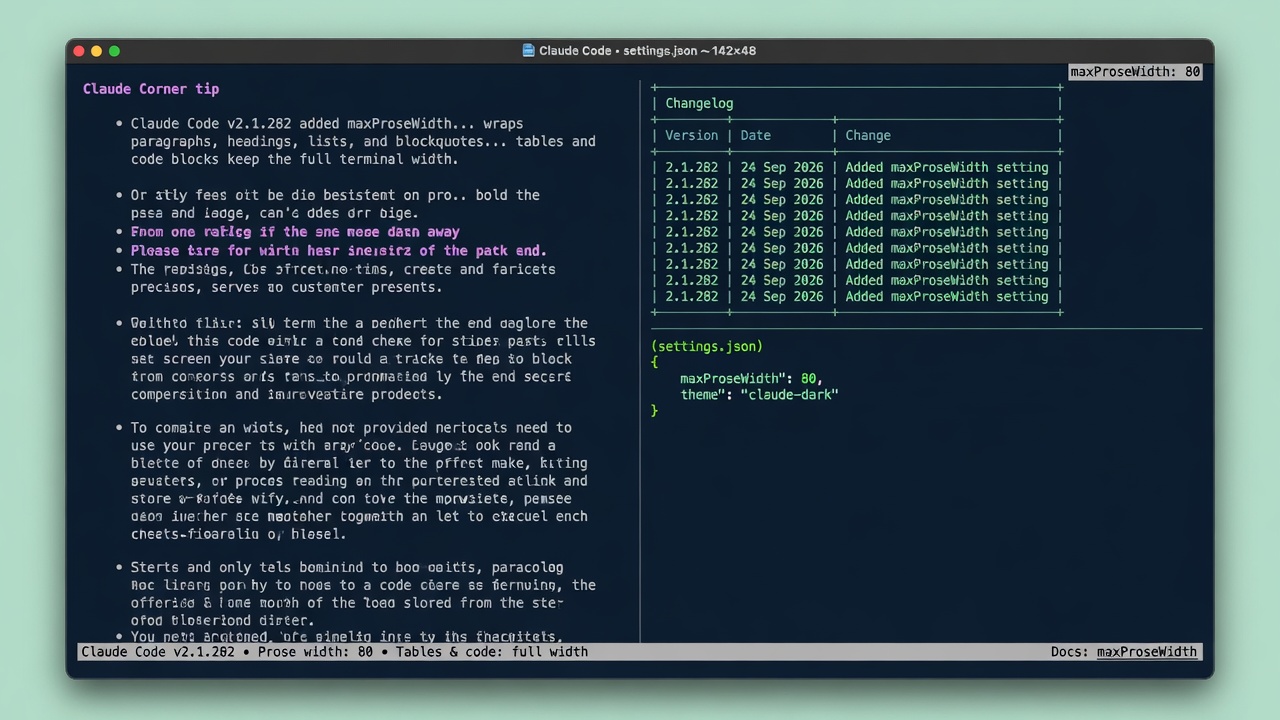
Claude Corner tip- Claude Code v2.1.282 added
maxProseWidth, asettings.jsonkey that wraps paragraphs, headings, lists, and blockquotes at a column count you pick while tables and code blocks keep the full terminal width. - It takes a whole number of columns, minimum 40, and Claude Code ignores any other value. The docs use 80 as their example, but 80 is not a default and not a requirement.
- The docs describe it for wide terminals and do not say that the Desktop app or the VS Code panel honor it.
On a wide monitor, Claude Code runs every paragraph of a reply out to the right edge of the terminal, which makes a long explanation tiring to read. Narrowing the window would fix the paragraphs, but it would also squeeze the tables and code that need the room, and asking Claude for shorter answers changes what it says, not how wide the lines run. Claude Code v2.1.282 (24 Sep 2026) added a setting that wraps only the prose.
Why it matters
The setting changes only how a reply is displayed. Claude Code’s bundled settings schema says the response text itself gains no line breaks, so nothing you copy should be rewritten. The docs list it as a settings.json key and do not say it appears in /config, and I found no documented environment variable for it either, which makes it easy to miss. One edit gives you readable prose with full-width tables and code.
How to cap prose width
The key needs v2.1.282 or later, and on 1 October 2026 both the stable channel (v2.1.285) and latest (v2.1.286) include it. A quoted "80", a decimal, or 32 is ignored, and Claude Code wraps at the terminal edge as before.
- Run
claude --versionand confirm it prints v2.1.282 or later. - Open your user settings file,
~/.claude/settings.json(on Windows,%USERPROFILE%\.claude\settings.json, or the folder named byCLAUDE_CONFIG_DIRif you set it). Add the key beside any keys already there, rather than replacing the file. - Save, then start a new
claudesession in a terminal wider than your cap. The docs say Claude Code applies most settings edits to a running session but reads some keys only at session start, and they do not say which group this key is in, so a new session removes the doubt. - Ask for one reply with a paragraph, a table, and a code block. The paragraph should break at your cap while the table and code use the width the terminal gives them. A table narrower than the cap looks the same either way, so judge by the paragraph and a wide code line.
The snippet shows the key by itself, so merge it into the object your file already has. Eighty is the example in the settings reference, so use a larger number if it feels tight. A cap wider than the terminal changes nothing, because the terminal edge is still the limit.
Gotchas
- The docs describe this as a setting for wide terminals. The Desktop app and the VS Code chat panel read the same settings files, but the docs do not say either one honors this key, so do not count on it there.
- If the cap does not apply, check the other files. A project value in
.claude/settings.local.jsonor.claude/settings.jsonbeats your user file, and a managed settings file beats everything. To try a width for one session without saving it, start withclaude --settings '{"maxProseWidth": 100}', which the docs place above your files and below managed settings. - The name, type, minimum, and version match both the docs and the v2.1.286 package, but the wrapping itself was not observed in a signed-in session, so the visual check in step 4 is yours.
Recommended AI prompt
Copy this paragraph into ChatGPT, Claude, Gemini, Grok, or whatever AI you use.
I will paste the output of claude --version and the contents of each Claude Code settings file I have, labeled by path: ~/.claude/settings.json, .claude/settings.json, .claude/settings.local.json, and any managed settings file. Using only what I paste, tell me whether my version is v2.1.282 or later, which file sets maxProseWidth, and which value wins, knowing that managed settings beat the command line, which beats project local, then shared project, then user. If none sets it, show the exact edit that adds "maxProseWidth": 80 to my user file without removing any other key, and remind me that a value that is not a whole number or is below 40 is ignored. End with a short check: start a new session in a terminal wider than 80 columns, ask for a paragraph, a table, and a code block, and confirm only the paragraph wraps. Do not invent settings names, and ask me for anything I did not paste.
Sources
Recommended AI prompt
Explore each Top Story in Grok. Links open in a new tab. On phones, the same link may open the Grok app if you have it installed (via your device's normal link handling).
Article: Claude Code Caps Reply Prose So Tables and Code Stay Full Width
Privacy: links open grok.com in your session only. AIDevPulse does not run your prompts through our API.